> For the complete documentation index, see [llms.txt](https://dev.3tsmart.org/2/llms.txt). Markdown versions of documentation pages are available by appending `.md` to page URLs; this page is available as [Markdown](https://dev.3tsmart.org/2/installing-zsh-oh-my-zsh-on-ubuntu-macos.md).
# Installing ZSH, Oh-my-Zsh on Ubuntu, MacOS
Oh-My-Zsh is a framework for Zsh, the Z shell.
## 1. Install and set up zsh as default
The recommended terminal for MacOs is iTerm2. You can download [here](https://iterm2.com/downloads.html)
With Iterm2, your default shell is zsh.
### 2. Install oh-my-zsh and Powerline fonts
To continue installing software on MacOS **Homebrew** need to be installed. Homebrew is a package manager that allows you to easily install, manage, and update software on macOS.
To get started with Homebrew, you can install it using the following command in the terminal:
```
/bin/bash -c "$(curl -fsSL https://raw.githubusercontent.com/Homebrew/install/HEAD/install.sh)"
```
Once installed, you can use commands like:
* `brew install` to install a package.
* `brew update` to update Homebrew and its package database.
* `brew upgrade` to upgrade all installed packages.
* `brew uninstall` to remove a package.
Homebrew is widely used for managing command-line tools and applications on macOS.
Homebrew installation
**Installing Powerline fonts**
Copy and paste these commands to your terminal.
```bash
brew install --cask font-source-code-pro-for-powerline
```
### 3. Change to a brighter colors
You can use my colors profile. You can get it [HERE](https://drive.google.com/drive/u/0/folders/1lNo5rwPPVQpEIRSVBbngYS9ZdvxCxPs-)
After that, go to **Iterm2 Settings** -> **Gerneral** -> **Settings** and **Import All Settings and Data...**
Import Settings
If you want to choose your color, select the Profiles tab then edit the color in **ANSI colors** by your favorite. (Set ANSI blue color to a brighter color. )
Select Colors Presets ( Solarized Dark is recommended)
* Set ANSI blue color to a brighter color. If you want to choose your color, select the Profiles tab then edit the color in **ANSI colors** by your favorite. Three main colors you can see simultaneously with the change in the terminal are:
* Text color
* Cursor color
* Command color
My Color Profile
### 4. Using a fancy theme for zsh
Open .zshrc file using nano editor
```bash
nano ~/.zshrc
```
Find the line *ZSH\_THEME="robbyrussell"* and replace **robbyrussell** with the **agnoster** theme in the .zshrc File. After that, press CTRL + X and Enter to save.
### 3. Install the most useful plugins for zsh
The most useful plugins for zsh are syntax highlighting and autosuggestions.
```bash
brew install zsh-syntax-highlighting zsh-autosuggestions
```
Add the plugin to the list of plugins for Oh My Zsh to load (inside \~/.zshrc):
```bash
nano ~/.zshrc
```
Find the line of enable plugins and add *zsh-autosuggestions* and *zsh-syntax-highlighting*
```bash
plugins=(git zsh-autosuggestions zsh-syntax-highlighting)
```

**Ctrl+X** to close nano editor with key **Y** to save changes. After all, reload zsh to enable plugins with command
```bash
source ~/.zshrc
```
If for some reasons, plugins could not install, do it manually by downloading them and putting them in the correct path.
COPY
```c
git clone https://github.com/zsh-users/zsh-syntax-highlighting.git ${ZSH_CUSTOM:-~/.oh-my-zsh/custom}/plugins/zsh-syntax-highlighting
git clone https://github.com/zsh-users/zsh-autosuggestions ${ZSH_CUSTOM:-~/.oh-my-zsh/custom}/plugins/zsh-autosuggestions
```
* Install Powerline fonts
* Change the default font of the terminal to Powerline font
* Set ANSI blue color to a brighter color
{% hint style="info" %}
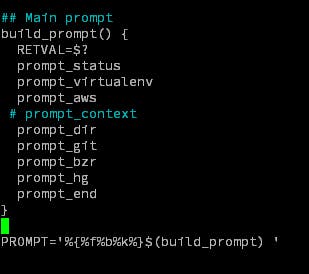
✅If the username and host always display at the beginning of the prompt make you feel annoyed, you can remove it permanently by following these steps:
COPY
```bash
nano ~/.oh-my-zsh/themes/agnoster.zsh-theme
```
Go to the bottom of file and comment out the line "prompt\_context"
Reload the shell and enjoy!
```bash
source ~/.zshrc
```
{% endhint %}
Resources:
*


 Reload the shell and enjoy!
```bash
source ~/.zshrc
```
{% endhint %}
Resources:
*
Reload the shell and enjoy!
```bash
source ~/.zshrc
```
{% endhint %}
Resources:
*